
DISCLAIMER: This document contains instructions on how the invoicing/payment flow works for the Netflix DTT program ONLY. For any non-DTT project, please contact the correct KeywordsStudios PM as the payment process for other projects may be different.
Below is the summary of the billing process and step-by-step instructions for the Netflix DTT program.

Before Invoicing: BPS Invoicing Information
Before proceeding with your first invoicing process, please make sure that your BPS Invoicing Information is filled in properly according to the requirements below.
Make sure your bank accepts USD payments from overseas. (*all payments will go from our Keywords Los Angeles office in USD)
Make sure your Bank Account Name matches your BPS profile name. If there’s a mismatch, payments cannot be processed. Please contact the RM team ([email protected]) for name updates.
If you have updated your bank information (i.e. new bank account, name updates, etc.), please inform the RM team ([email protected]) at once. Otherwise, your payments will still go through to your old account and affect your payment receipt. Keywords is not responsible for delayed/withheld payments due to noncompliance with the invoicing process.
STEP 1: Delivery Recap Email
Every month, by the 3rd week of the month, all the linguists will receive a spreadsheet that contains all the jobs they submitted during the previous month. For instance, for your work done in December (up until Dec 31), the recap will be shared with you by the 3rd week of January. Please see the screenshot below for the Recap Email subject line.

Figure 1. Recap Email Subject Line
STEP 2: Verification and Custom Payment Request
Linguists must verify the recap once they confirm the recap contains all the tasks they submitted and performed during the previous month.
For any discrepancies, linguists should attach a Custom Payment Request Form in response to the Recap Email. Please download the Custom Payment Request Form here: https://ncloud-kwit.keywordsstudios.com/index.php/s/CdQt5j62YotCrJD
STEP 3: Hand-off (HO)
After the linguists confirm the recap, they will receive a Hand-Off (HO) email that includes the total payment amount from the delivery recap. See below screenshot for the HO email sender and email subject for reference.
*Note: Discrepancies submitted via the Custom payment request will be verified and calculated in a separate HO.

Figure 2. HO Email Sender and Subject Line
Once you receive the HO email, please follow the steps below:
Click on the “I accept” button in the email. (Screenshot below)
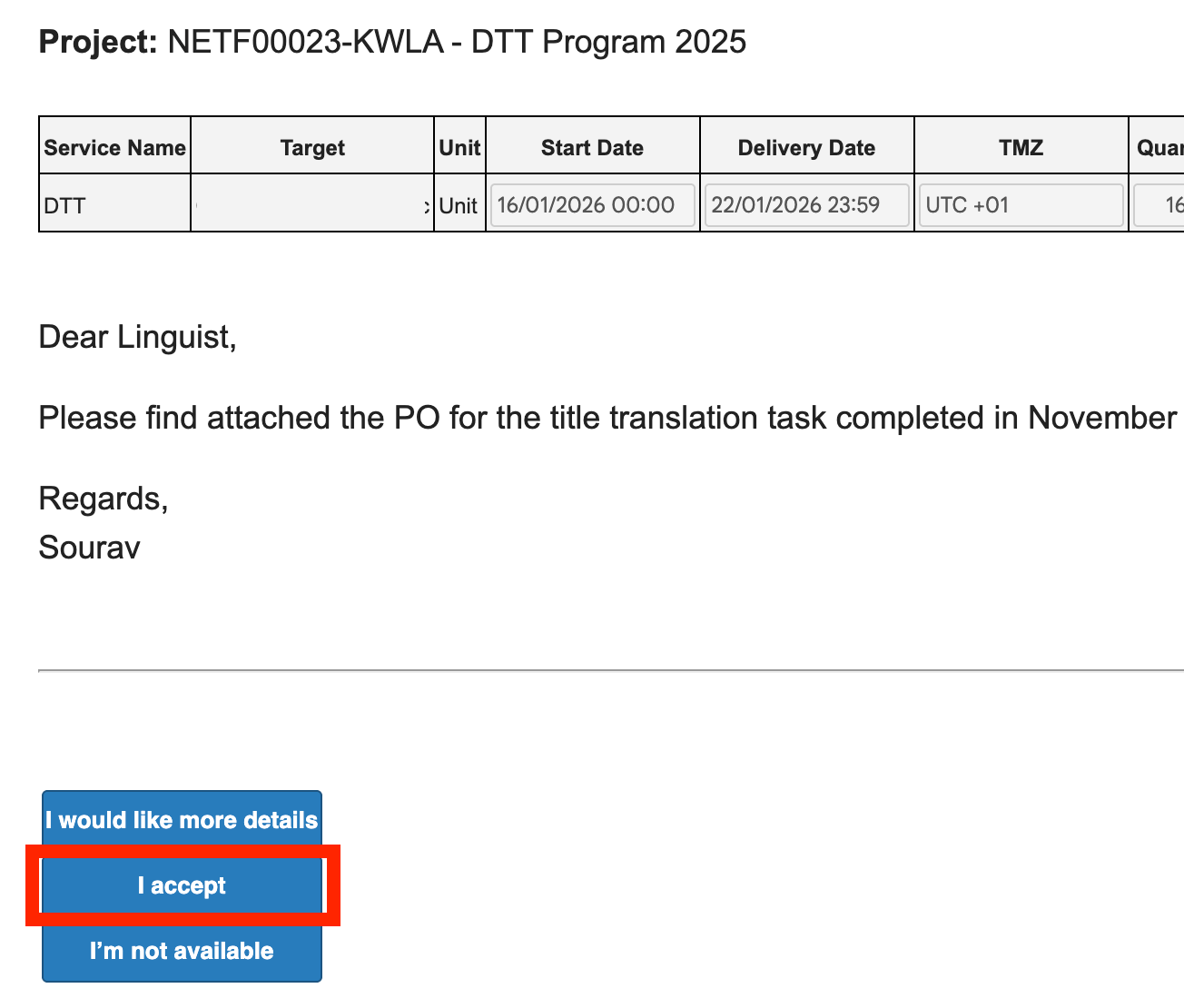
Figure 3. HO Email and “I accept” Button
Next, you will receive a new email notification. Click on the highlighted link in the email. (Screenshot below)
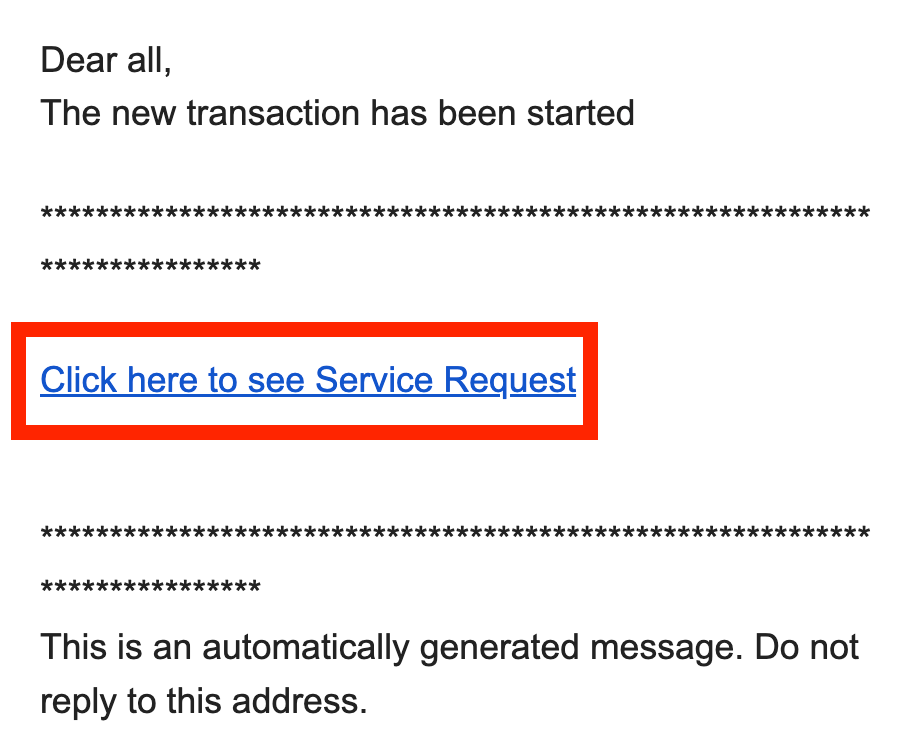
Figure 4. Automated Email after HO is Confirmed
You will be redirected to your BPS profile (*need to log in). Then, click on “HB” > “Confirm.”
*Note: If you are unable to log into BPS, please contact the RM team for password reset ([email protected]).
STEP 4: Invoicing
Once the above is completed, we will approve the payment in 1-2 business days. Then, you will be able to see the task under the “To Be Invoiced” tab in your BPS profile.
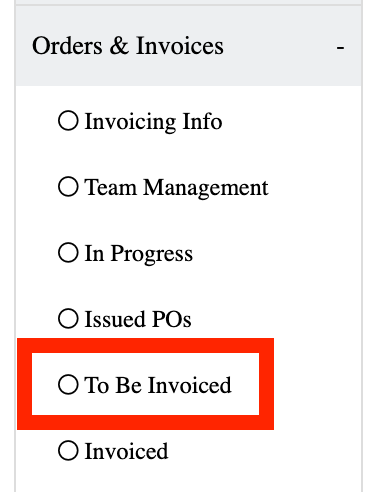
Figure 5. BPS Menu
*If you are unable to see anything under “To Be Invoiced,” make sure to select the correct “Company & Location“ on the top right dropdown in BPS: Keywords Studios – Los Angeles.

Figure 6. BPS “Company & Location” Dropdown
Once you see your payment summary under “To Be Invoiced,” please follow the steps below to create invoice, so the finance team can proceed with payments:
Select (check the boxes of) all payments you’d like to create invoices > Click the “Create Invoice” button on the top right.
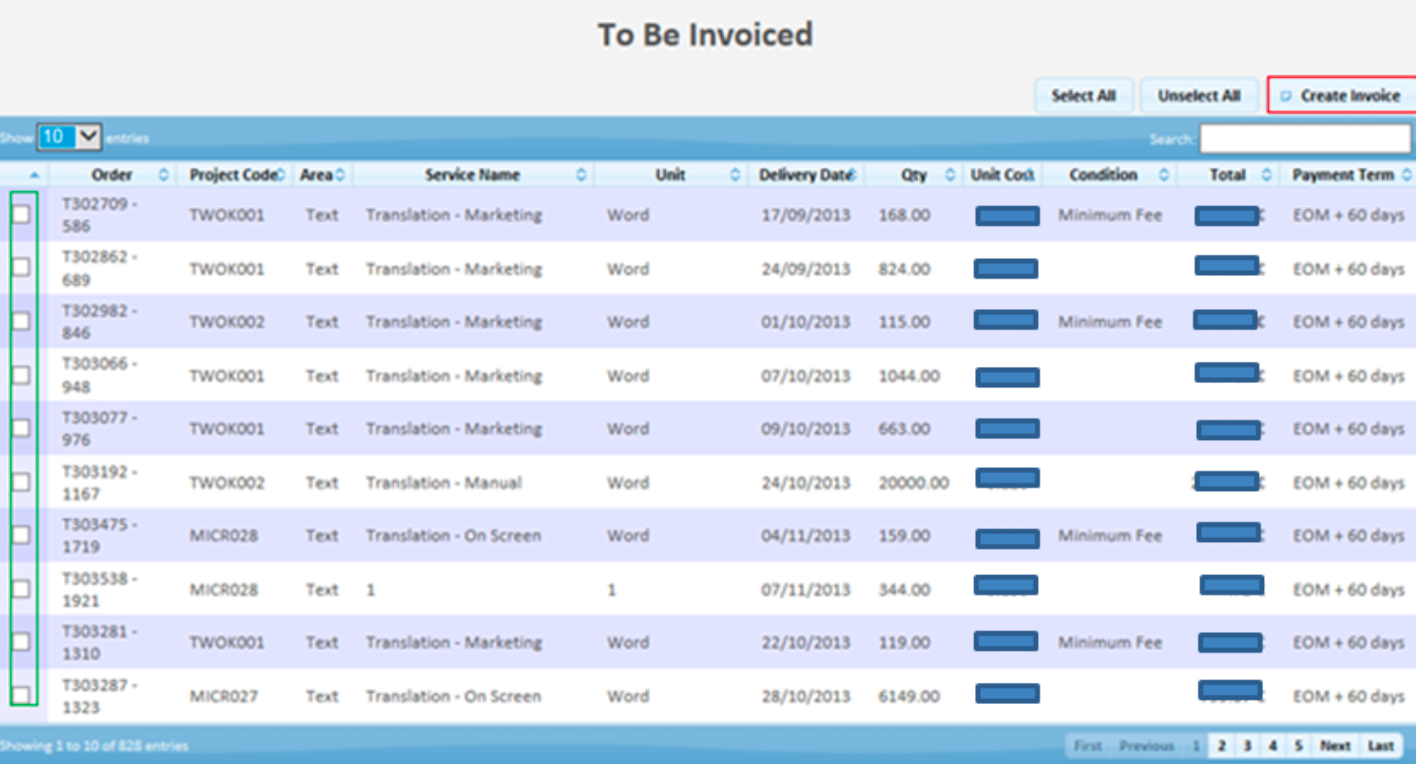
Figure 7. Create Invoices
Fill in all the required fields. See field explanations below. Once done, please click “I Accept“ > Click “Ok.”
Number: Please insert “DTT” + the month when the tasks were performed + a number of your choice. The selected number will help you keep track of the invoiced tasks. E.g. “DTT July - 26”
Date: Please insert the date when you create the invoice. The date needs to be before the 20th of each month.
Payment Condition: Fixed term (EOM + 15 days). Do not touch.
Note: If you have updated your bank information, please update the RM team right away and add a comment in the Note field. Otherwise, the payment will be processed according to the old information and affect your payments.
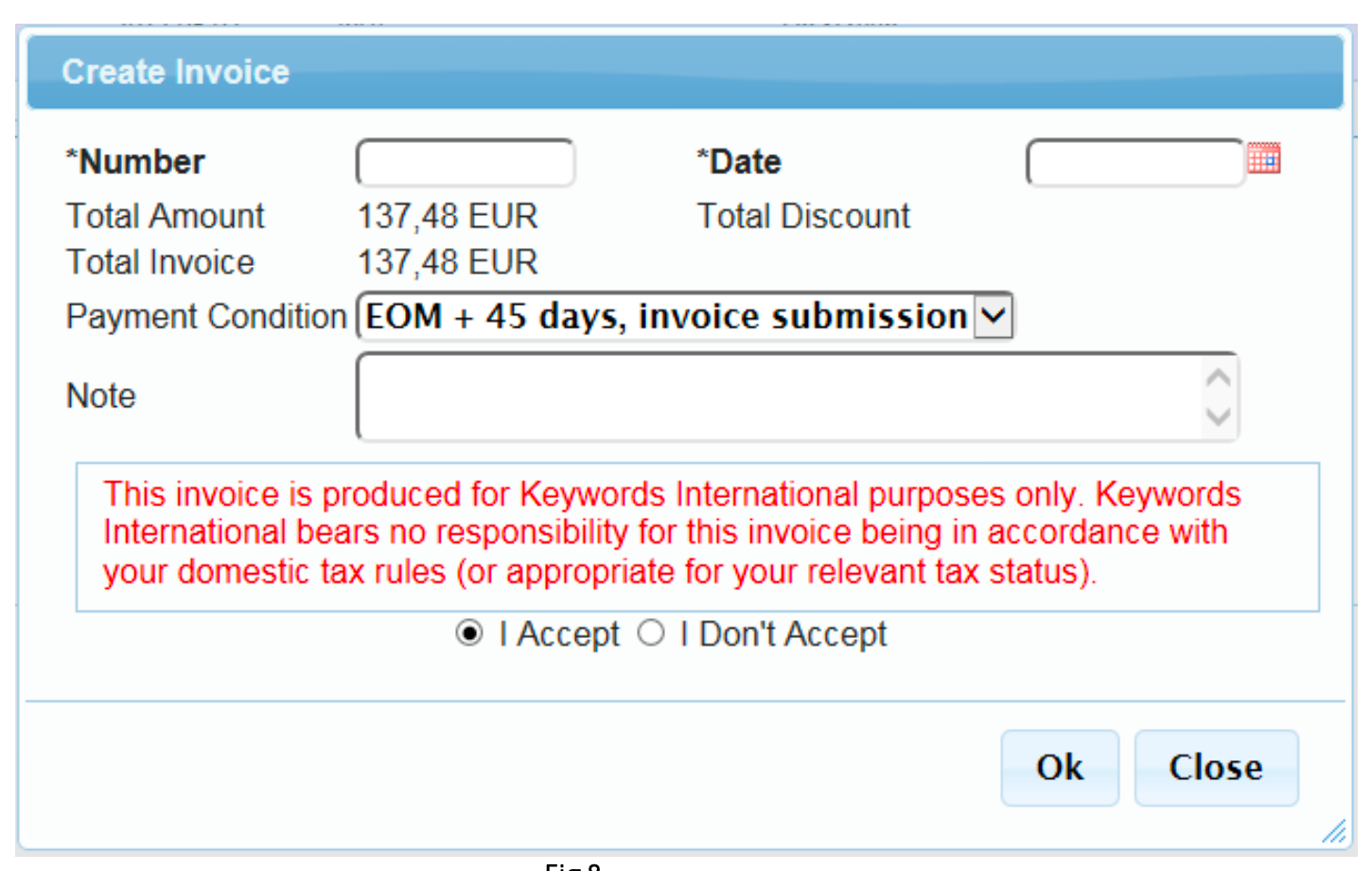
Figure 8. Invoice Creation Details
*IMPORTANT NOTES*
All invoices need to be created on BPS by the 20th of each month.
If you have modified your bank information (i.e. a new bank or new name, etc.) and would like to receive payments in your updated bank, please update the RM team right away and add a comment in the “Note” field of the invoice.
STEP 5: Payment
Payments will be sent out by the 15th of the following month. For example, for work done in December, invoices need to be created on BPS by Jan 20th, and the payments should be sent out by Feb 15th.
*Note: Depending on your bank’s payment receiving policy, it may take a few additional days for your money to show up in your account due to intermediary bank processes.
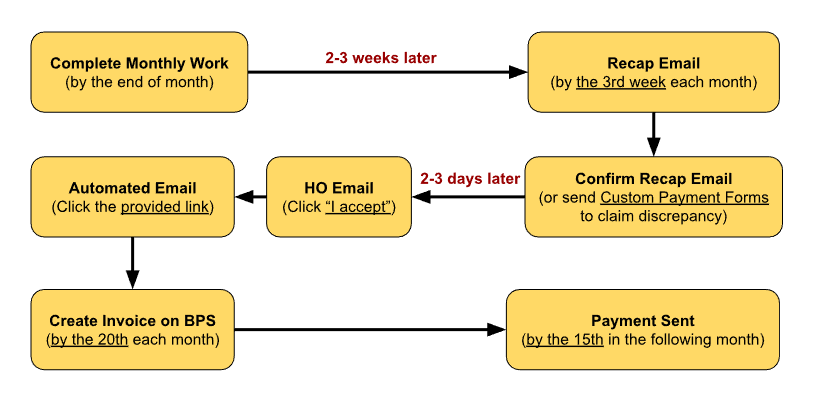
Here’s an example for the complete workflow:
IMPORTANT NOTES
Task Delivery Tracking
Please keep a record of all tasks delivered, including the Package ID, task length, and delivery date to cross-check with Netflix's report and ensure that no tasks are missing.
Netflix sends a final list of confirmed tasks (i.e. the Recap Email mentioned in Step 1) after the end of each month.
Payments
Payments are made only in USD. Please be sure that your bank accepts USD.
If your account is set in a different currency (but accepts USD conversion), your bank may apply conversion costs.
Both parties are responsible for their own bank processing fees. Keywords covers the fee incurred when sending out the payments but has no control over the fee charged by your receiving bank.
If your bank process involves intermediary banks. There may be additional handling fees.
Payment Schedule
Payments are typically sent out by the 15th of each month.
Due to variable circumstances (weekends, bank holidays, etc), it may take a few days for the money to arrive in your account.
If you haven't received the payment by the 20th of the month, please notify the RM team ([email protected]).
Mandatory Requirements
Your name shown in your BPS profile must match the name of the bank account holder.
If invoicing as a company or using a company's bank account, ensure that the company name is reflected in your BPS profile. Otherwise, the payments won’t be able to go through.
Any bank information change needs to be communicated to the RM team directly after it’s added/updated on BPS. Otherwise, the payments will still go through to the old accounts.
Small Payment Amount
For payment amount that is considered small, we suggest considering the Cumulative Invoices approach (see the section below “Cumulative Invoices”) to avoid disproportionate bank processing fees that may incur from your intermediary/beneficiary banks.
Cumulative Invoices
You can combine multiple invoices and create invoices all at once.
Consider creating a cumulative invoice if the amount for a single month is low (below 200 USD), as this can help avoid disproportionate bank processing fees.
Cumulative invoices cannot be created if they involve: a) Different currencies, b) Different payment terms, or c) Different services.
Additional info about the invoicing procedure can be found in the general guide: BPS_Vendor Guide_v.1.9.1.pdf* (Check Section 4 for invoicing procedure)
*Note: The document above contains general instructions. The terms and conditions specified may differ from what applies for DTT. Please refer to it only as a guidance for invoicing. For any questions, please contact the RM team ([email protected]) directly.